5. Specifications on the Rootlenses Insight interface
Rootlenses Insight offers a flexible and customizable interface so you can adapt the experience to your needs. From this module, you can adjust the display mode, language, and review the limits associated with your current plan.
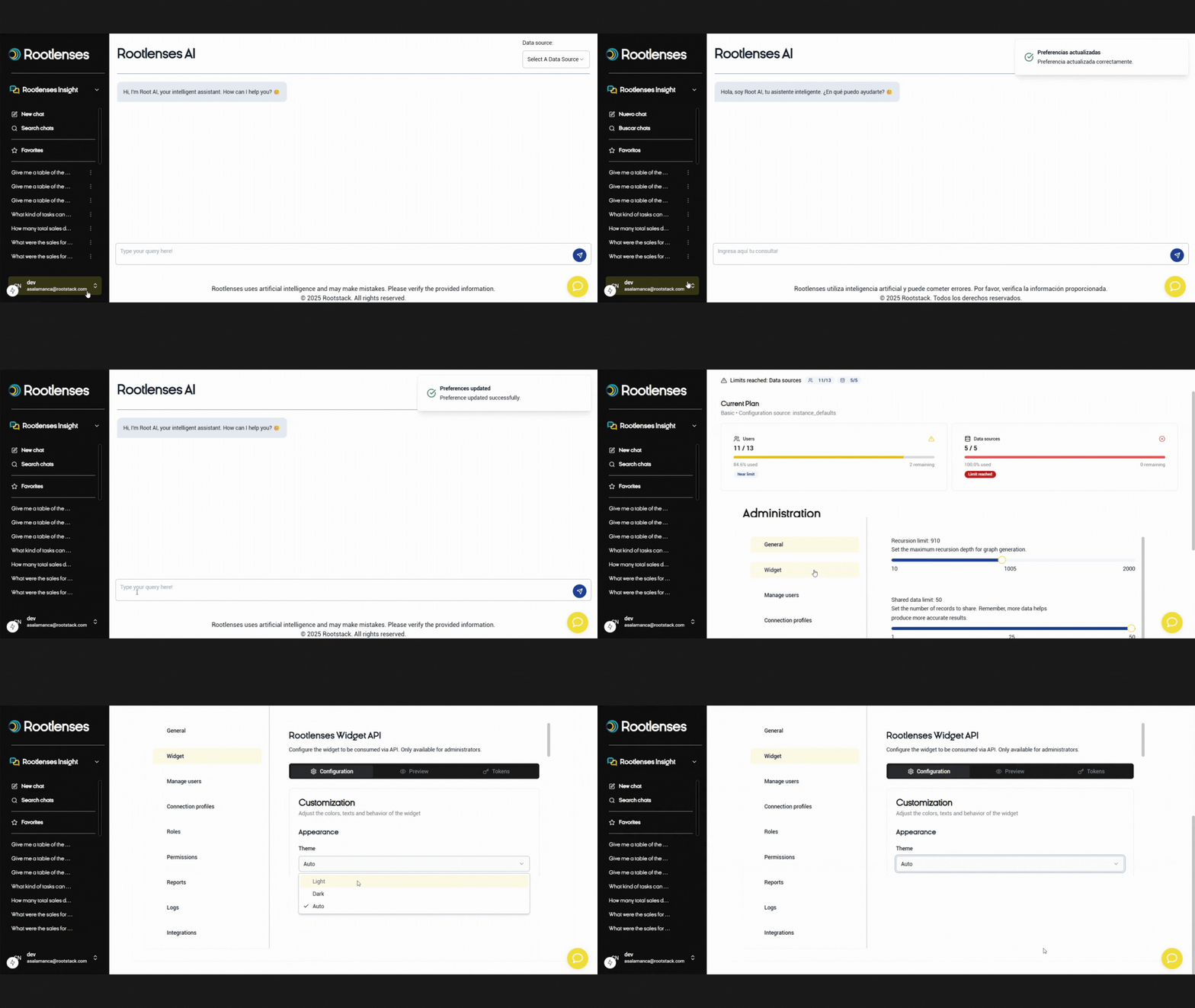
Dark mode / Light mode
You can choose whichever visualization mode feels most comfortable:
- Light Mode: Ideal for well-lit environments or daytime use.
- Dark Mode: Perfect for reducing eye strain, especially in low-light settings.
Switching between modes is instant and does not affect your workflow.
Application language
Rootlenses Insight is available in:
- Spanish
- English
Select your preferred language for the entire interface, menus, system messages, and chats. You can change it anytime from General Settings.
User preferences
Individual preferences mirror the General Settings section, allowing you to adjust:
- Language
- Display mode
- Interaction preferences
- Personal navigation and accessibility settings
These configurations apply only to your user account and do not affect the rest of your team.
5.1. Help chat
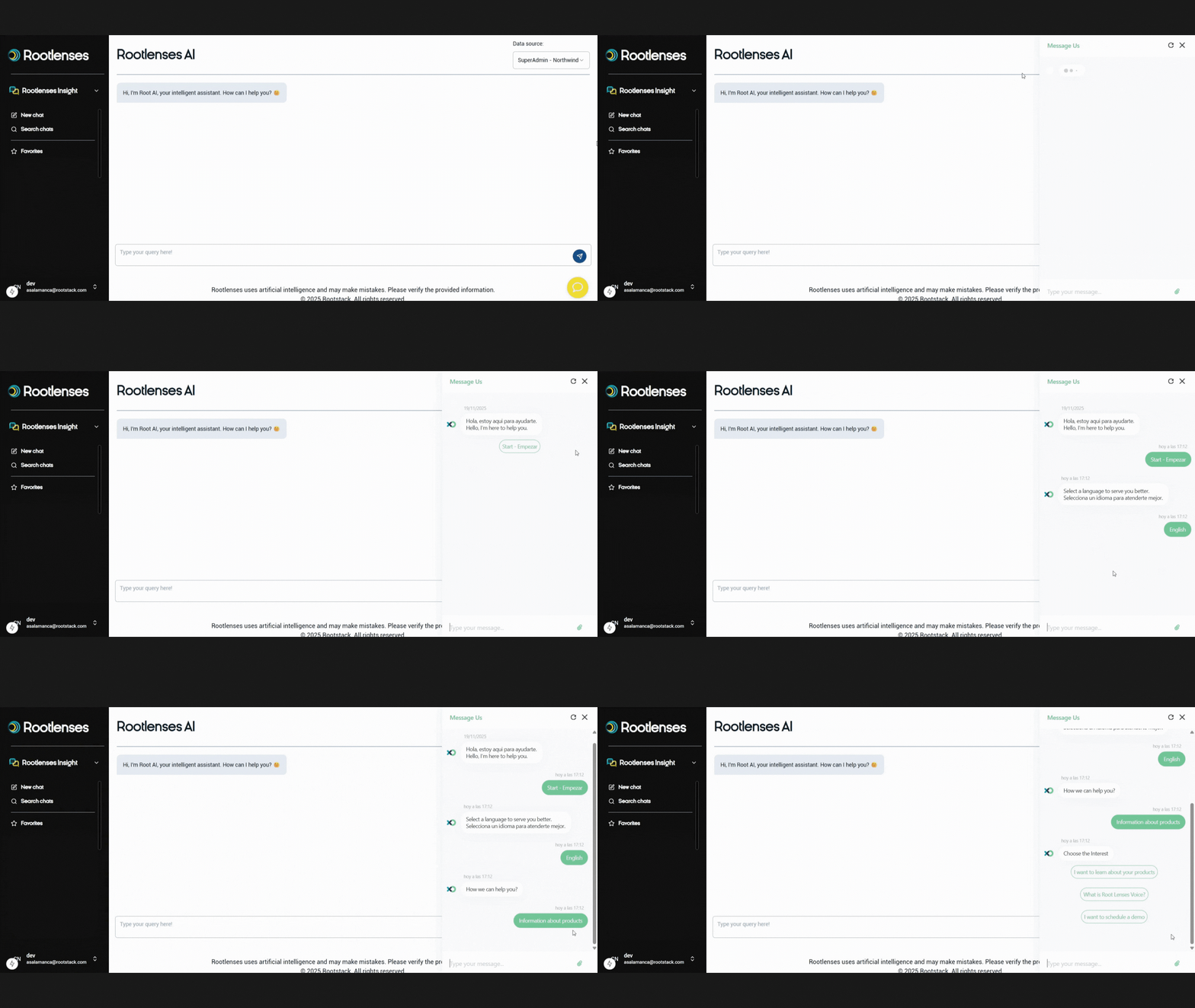
In the bottom-right corner of Rootlenses Insight, you’ll find a yellow circular icon with a chat bubble.
This element serves as the entry point to the support assistant.
How it works
Chat Icon (Floating Button)
- Always visible in the bottom-right corner of the screen
- Clicking it opens a pop-up messaging window
Support Window
- Expands on the right side of the screen
- Displays a welcome message: “Hola, estoy aquí para ayudarte. Hello, I’m here to help you.”
- Includes a button to start the conversation: Start – Empezar
- A text box appears at the bottom to type your message
Using the Assistant
- Ask quick questions about using Rootlenses Insight
- Get fast and direct help without leaving the platform
5.2. User panel
The User Panel, located in the bottom-left corner, allows you to quickly access your main account options. From this menu you can manage personal preferences, access key settings, and navigate to administrative modules depending on your permissions.
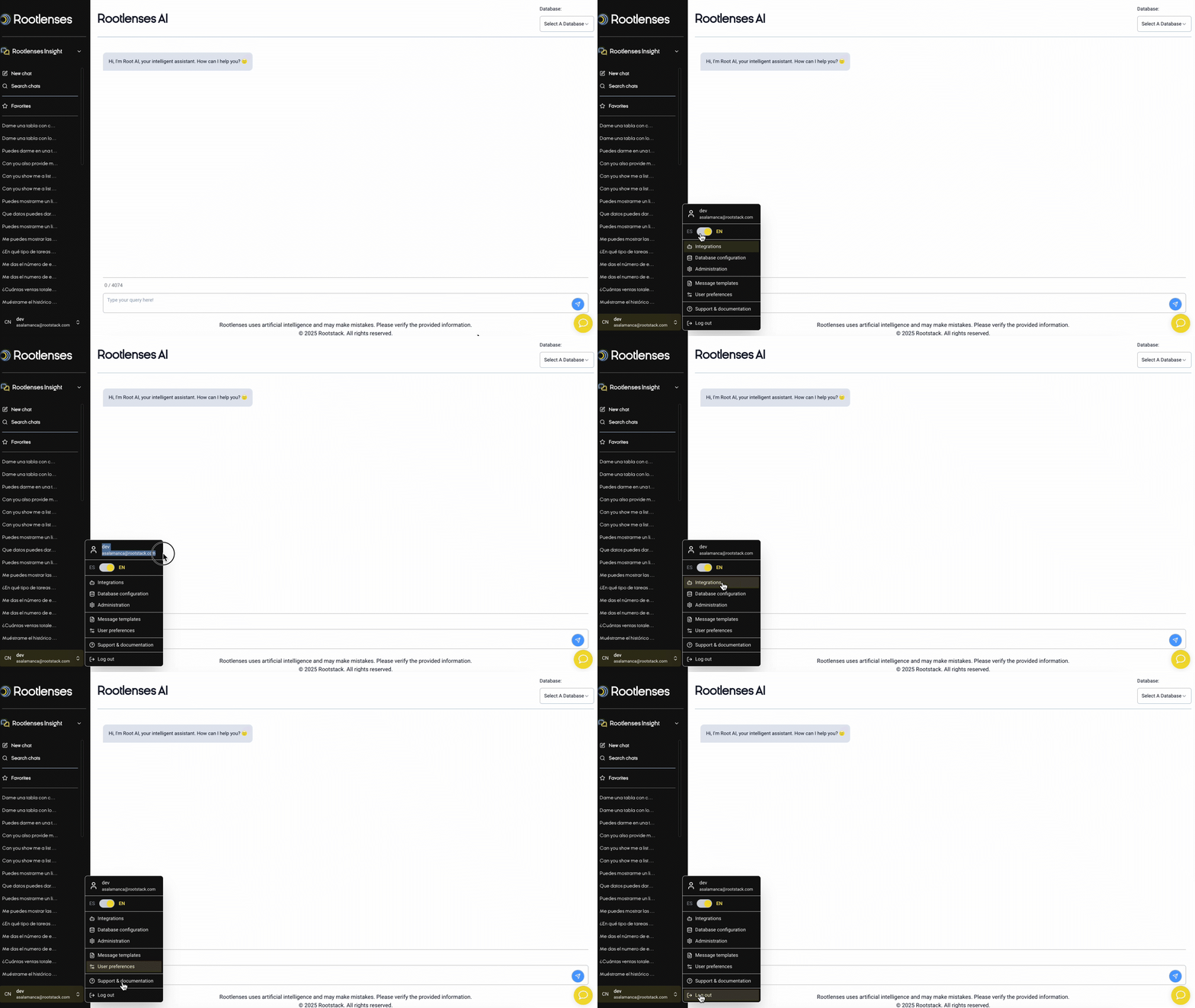
When you open the User Panel, you will find:
User information
Displayed at the top:
- User name
- Associated email address
- Role or account type (when applicable)
This helps you easily confirm which account you’re working in, especially if you manage multiple environments.
Language switch (ES / EN)
A toggle lets you switch the application language between:
- ES – Spanish
- EN – English
The change is immediate and applies to the entire interface.
Integrations
Direct access to the Integrations module, where you can:
- Create API Keys
- View active integrations
- Revoke access
- Connect external applications
Manage databases
From here you can:
- View all connected databases
- Add new connections
- Edit or delete existing ones
It is the fastest way to manage your data sources.
Administration
This section takes you to the full administration panel, where you can manage:
- Users
- Roles
- Permissions
- Connection profiles
- Plan limits
- Logs
- Reports
- General configuration
Only visible to admin-level users or those with high privileges.
Manage templates
Access the module where you can:
- Create prompt templates
- Save them
- Edit them
- Organize a reusable bank of queries
Perfect for teams working with frequent or recurrent analyses.
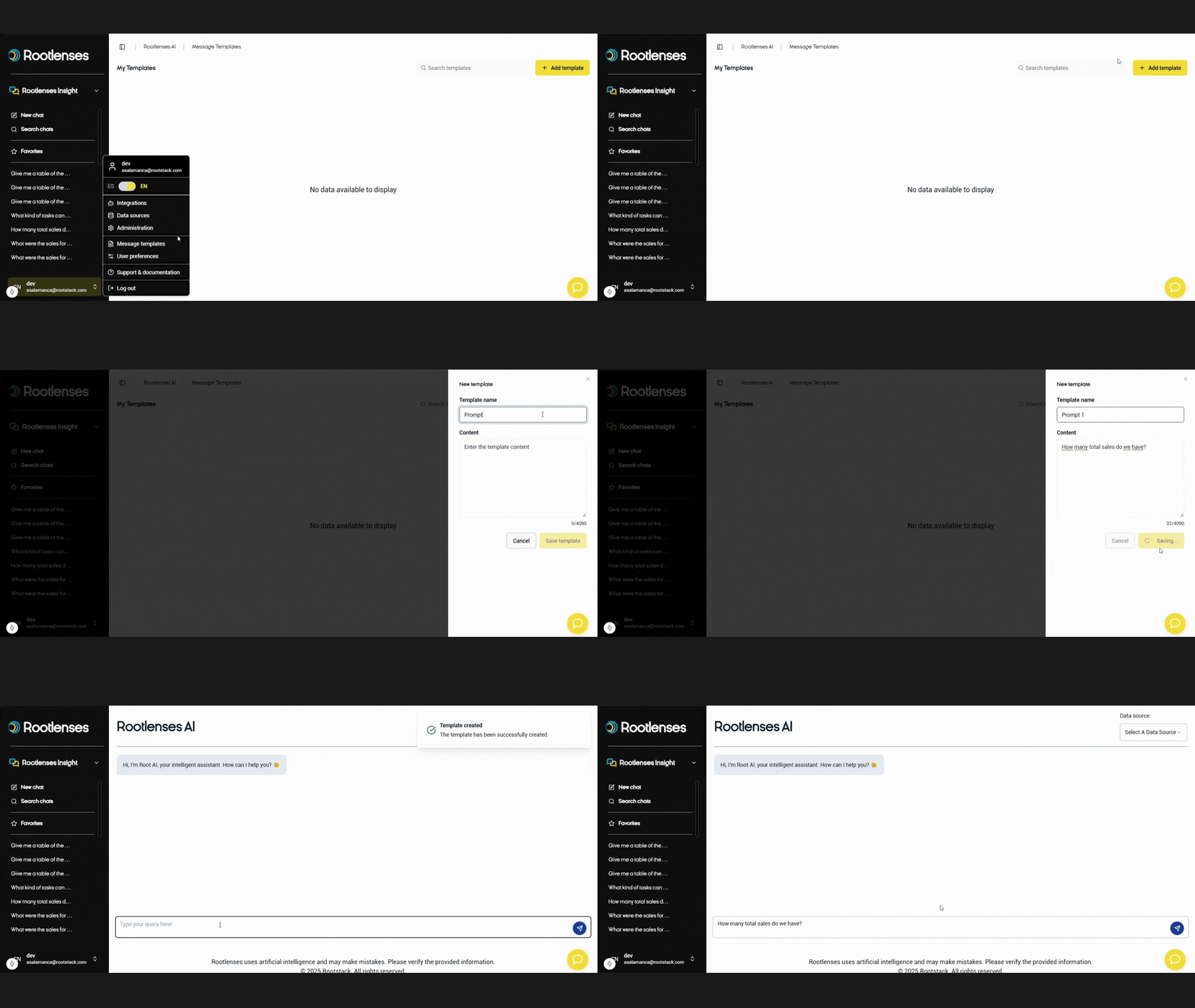
User preferences
Configure:
- Dark / Light mode
- Display layout
- Personal preferences
- Language (also available above)
These settings affect only your account.
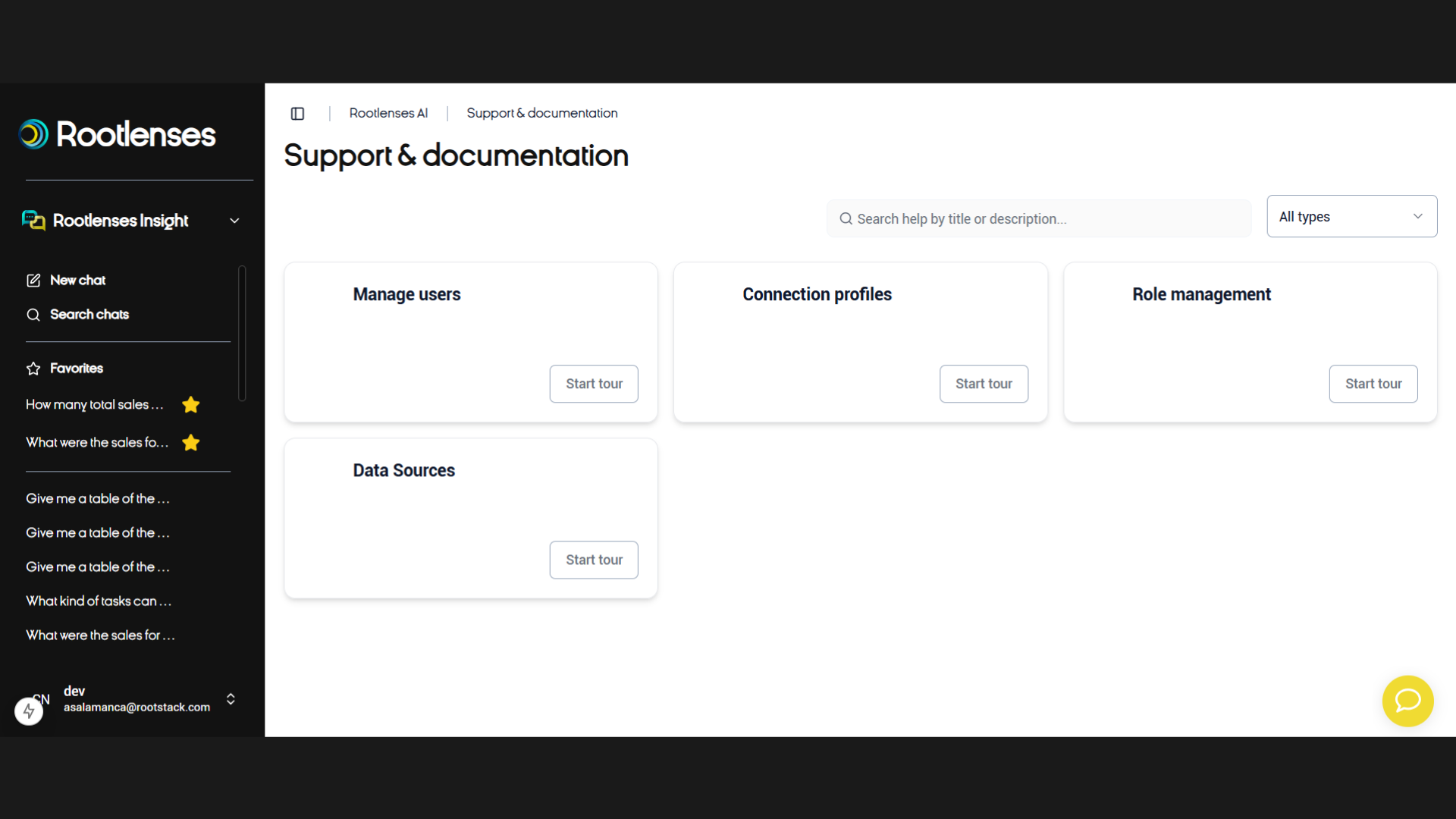
Support and documentation
Takes you to the help center where you can:
- Browse official documentation
- View guides
- Access technical support
Ideal for resolving questions quickly.
5.3. Log out
Securely end your session and return to the login screen.