3. Configuration Module - Your platform's control center
Main objective
Manage access, permissions, and automations for your platform centrally, ensuring security, operational efficiency, and perfect alignment between system capabilities and your team's responsibilities.
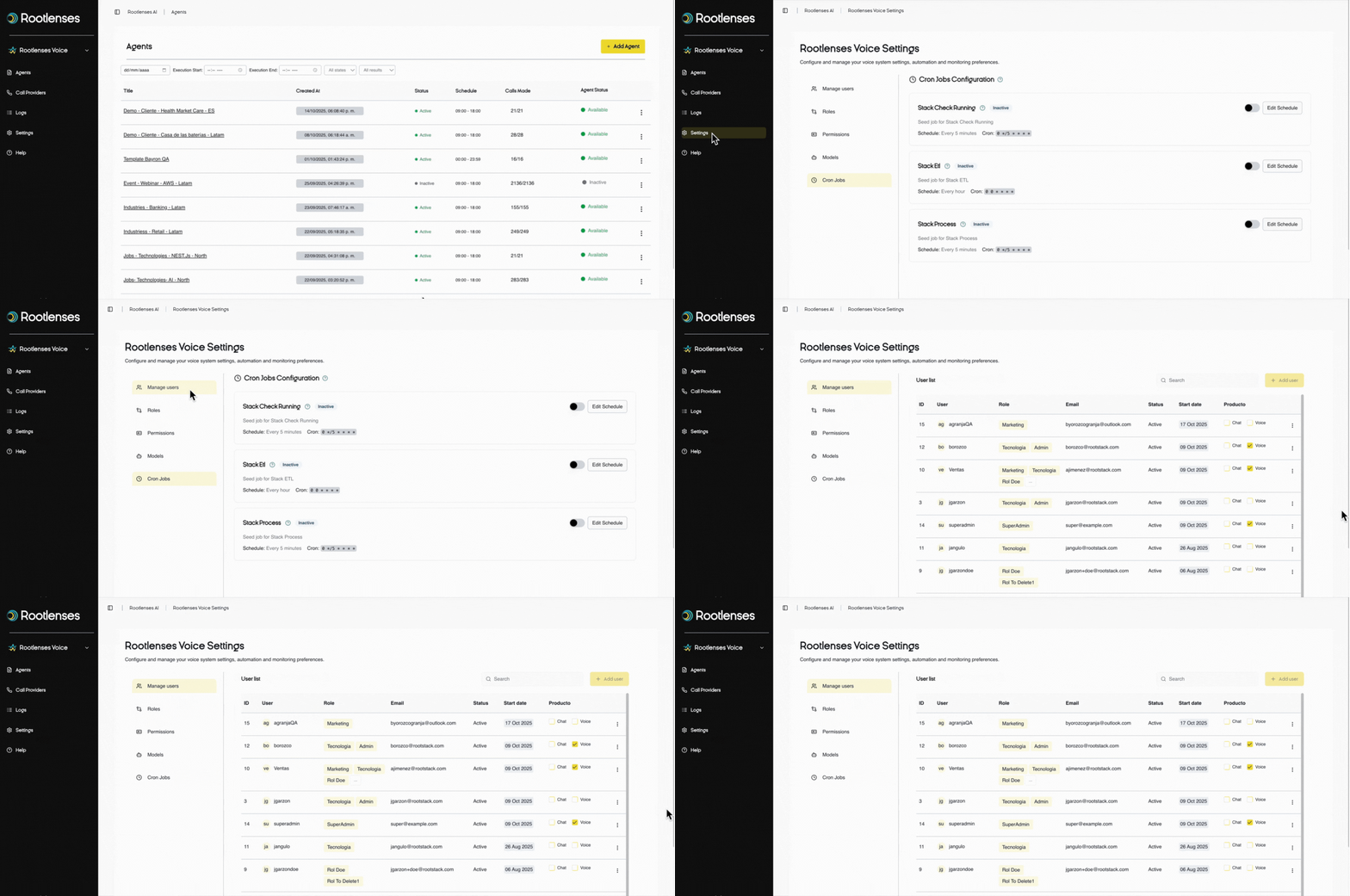
3.1. Manage users - Access control and security
User Table - Complete overview of your team
- ID - Unique system identifier (not editable)
- Role - Type of access and assigned permissions
- Email - Address for access and notifications
- Status - Active / Inactive (immediate access control)
- Start Date - When the user joined the platform
Actions per user (Kebab Menu ⁝)
Deactivate
- Immediately suspends access while maintaining historical data
- Ideal for vacations, licenses, or temporary suspensions
Edit
- Update role, email, or basic information
- For security reasons, it is not possible to modify the ID or creation date.
Delete
- Permanently removes user with confirmation
- Irreversible action that maintains audit trails
➕ Add new user - Expand your team
Creation Mode:
Username - Identifier for the system
Email - Unique access address
Password - Minimum 8 characters with uppercase, lowercase, number, and symbol
Generate Password - Automatically creates a secure 12-character password
Roles - Select access level (Administrator, Supervisor, Agent, Viewer)
Save - Confirm creation with assigned permissions
Roles - Define hierarchies and responsibilities
Role Table - Organizational Structure
Role Name - Unique identifier (e.g., "Sales Supervisor")
Description - Purpose and scope of the role
Actions by role:
- Edit - Modify description and responsibilities
- Delete - Remove role with confirmation (only if no users are assigned)
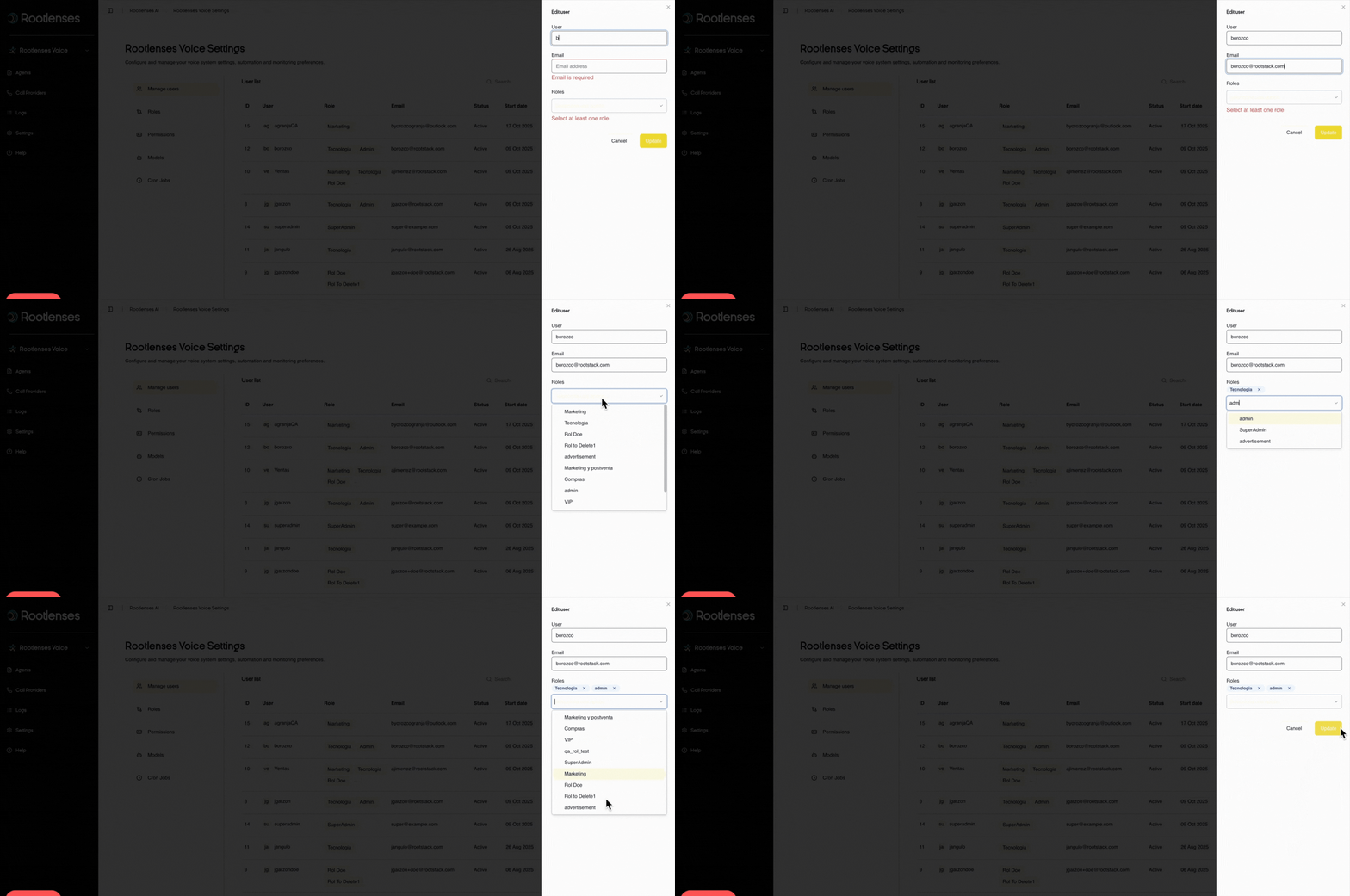
➕ Add a role - Customize your structure
Creation Modality:
Role Name - Must be unique in the system
Description - Clearly defines responsibilities and scope
Example: "Can create agents but not modify providers"
Permissions - Granular Control of Actions
Permissions Matrix - Detailed Power
Clear visual structure:
- Rows = Specific permissions ("Create Agents", "Edit Providers", "View Reports")
- Columns = Defined roles ("Administrator", "Supervisor", "Agent")
- Intersections = Checkboxes that define capabilities
Intuitive operation:
Auto Save - Changes are applied immediately when checked/unchecked
No Save Button - Eliminates unnecessary steps and prevents oversights
Quick Search - Filter permissions by category for efficient navigation
Visual indicators:
- Checked Checkbox = Active permission for that role
- Empty Checkbox = Inactive permission for that role
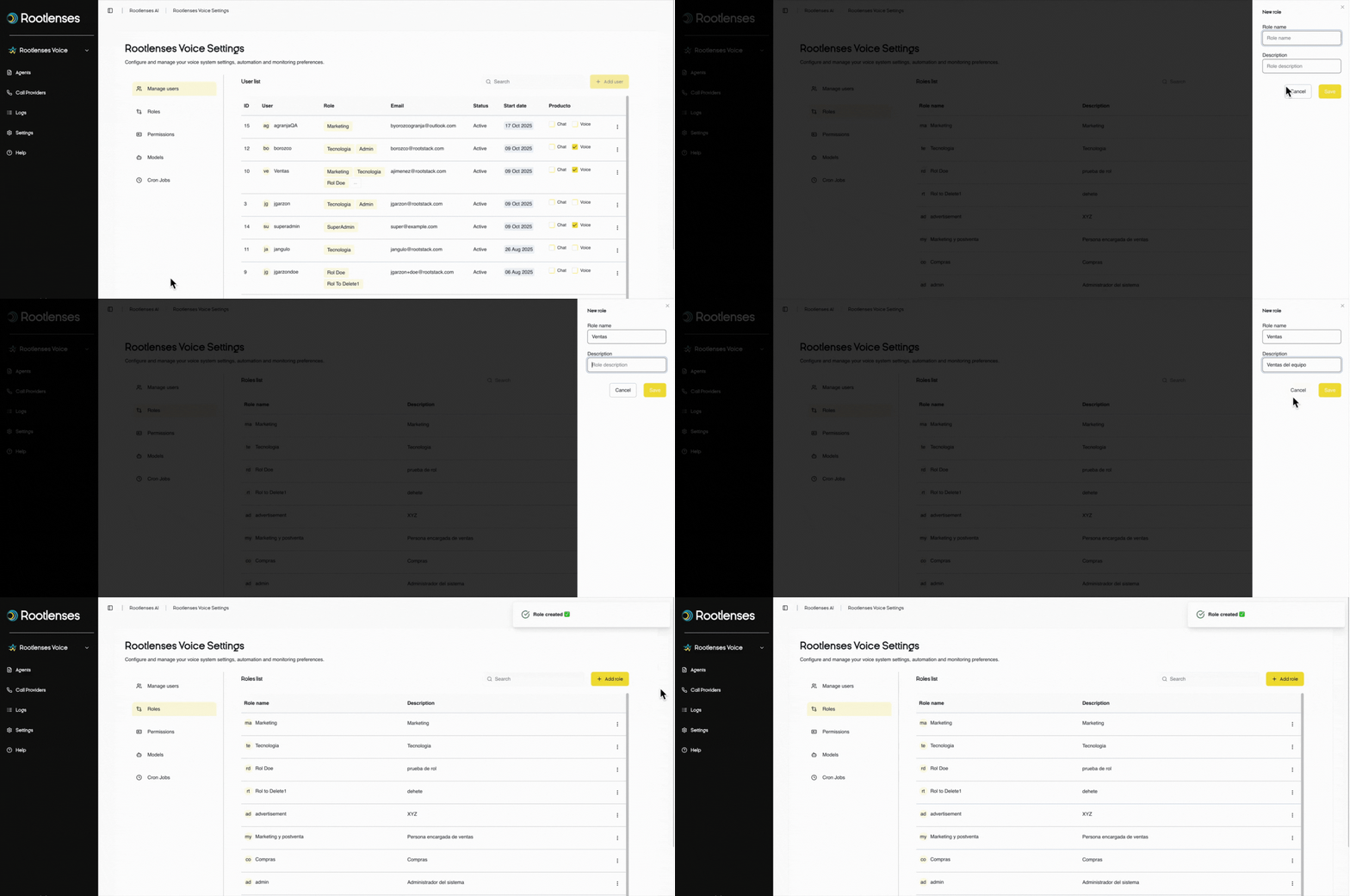
3.2. Scheduled tasks - Intelligent automation
Main objective
Automate critical tasks in your operations so your team can focus on what really matters - strategy, analysis, and growth - while the system works 24/7 to maintain and optimize your communications.
3.3. Default tasks - The pillars of your operation
Stack check running
Your guardian of continuous operation
Automatically checks the status of all your active stacks every 5 minutes, ensuring your platform runs smoothly 24/7 without manual oversight.
Value it brings: Proactive detection of problems before they affect your customers
ETL stack
Your real-time data synchronizer
Automatically process and load information from your ETL sources, keeping your contact databases always up-to-date without manual intervention.
Value it brings: Always fresh information for more effective and personalized campaigns
Stack process
The engine of your mass communications
It runs the main call processing and intelligently manages the queue of pending contacts, maximizing your contact capacity without additional effort.
Value it brings: Maximum operational performance with zero manual queue management
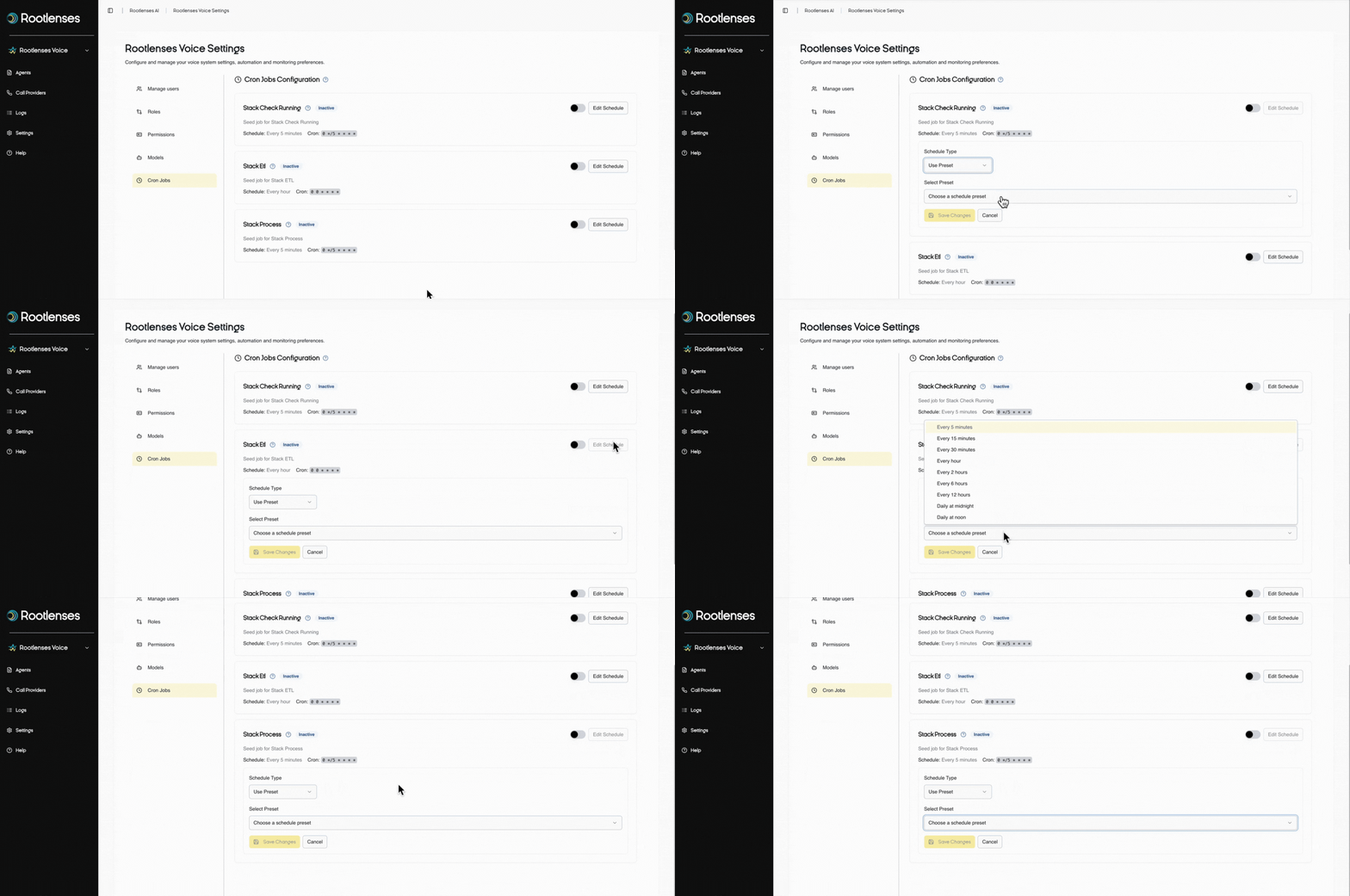
3.4. Task View - Complete control at a glance
Intuitive management cards
Each task is presented in a clear card with:
Task name - Instant identification
Active/Inactive switcher - Instant control with one click
"Edit Schedule" button - Quick customization whenever you need it
Current status - Last run and visual health check
Immediate Benefit: Centralized management of all your automation on a single screen
Schedule Editing Modal - Customization Without Complexity
Schedule Type Selector
Use Default
The easiest way - schedules optimized by experts
Perfect for 90% of cases, tested and validated
Custom Cron
Maximum control for specific needs
Field with automatic CRON format validation
3.5. Default options - Tested and optimized
For constant monitoring:
Every 5 minutes - Maximum operational visibility
Every 15 minutes - Perfect balance between control and performance
For efficient processing:
Every 30 minutes - Ideal for semi-critical data
Every hour - Balance between timeliness and performance
For maintenance tasks:
Every 2-6-12 hours - Depending on criticality and volume
Daily at midnight - Non-critical batch processing
Daily at noon - Business hours updates
Smart validation
Real-Time CRON Format Verification
Preventing Configurations That Could Affect Performance
Automatic Suggestions Based on Best Practices
3.6. The strategic value you gain
Proven operational efficiency:
- Save 15+ hours per week on repetitive manual tasks
- Automatic scalability that grows with your operation
- Proactive problem prevention before they occur
- Perfect consistency in the execution of critical processes
Examples of Real Impact:
For Growing Businesses:
"You configure Stack ETL every hour → Your sales teams always have fresh leads → 28% more conversions due to updated data"
For 24/7 Operations:
"Stack Check Running every 5 minutes → Immediate detection of outages → 99.9% uptime guaranteed"
For High-Performance Teams:
"Optimized Stack Process → Intelligent queue management → 40% more contacts with the same resources"
3.7. How to get started in 3 easy steps
Step 1: Activate Essential Stacks
Stack Check Running → Active every 5 minutes
Stack Process → Active every 2 minutes
ETL Stack → Active based on the frequency of your data
Step 2: Customize to Your Pace
Do you operate 24/7? → Maintain constant monitoring
Business hours? → Adjust to your peak hours
Accelerated growth? → Increase ETL frequency
Step 3: Monitor and Optimize
Review successful executions weekly
Adjust frequencies based on season
Expand automation to new processes
Scheduled Tasks aren't just another feature—they're your automated workforce that works while your team sleeps, ensuring that every morning you find your operation running smoothly.
3.8. The strategic value of the module
For security and compliance:
- Granular control over who can do what on your platform
- Complete auditing of access and modifications
- Clear separation of responsibilities by role
- Immediate response to personnel changes
For operational efficiency:
- Rapid onboarding of new team members
- Orderly scalable according to organizational growth
- Reliable automation of critical processes
- Precise customization according to specific needs
Example of effective implementation:
"New sales team joins →
You create the 'Salesperson' role with specific permissions →
You add users with that role →
You schedule CRM synchronization tasks →
Your operation scales seamlessly"
3.9. Proven best practices
For user management:
Review active vs. required users quarterly
Use temporary deactivation instead of deletion
Keep a strong password policy always active
Audit access with monthly reports
For roles and permissions:
Follow the principle of least privilege - only the necessary permissions
Document changes in the permissions matrix
Standardize role names by department
Periodically review unused permissions
For scheduled tasks:
Monitor execution of critical stacks
Test changes during low-demand times
Maintain backups of CRON configurations
Document the purposes of each scheduled task
The Configuration module is the brain that makes your platform smart, secure, and scalable. Investing time in configuring it correctly today saves you hours of trouble and limits risks tomorrow.