4. First steps to using Rootlenses Insight
Rootlenses Insight is designed so you can connect your data in minutes and start getting intelligent answers instantly. This section provides everything you need to establish your first connection, validate your information, and ensure the tool is ready to work with you without complications.
4.1 How to connect your database to Rootlenses Insight
Rootlenses Insight connects directly to your databases to analyze the information, map its structure, and enable intelligent AI-powered queries. The process is simple, fast, and requires no additional installations.
Supported data sources
Rootlenses Insight is compatible with the main enterprise database engines. Currently, it supports:
- IBM DB2
- MySQL
- Microsoft SQL Server
- PostgreSQL
- Oracle Database
- Apache Cassandra
- MongoDB
- Amazon DynamoDB
The platform continues to expand and will soon incorporate new data sources.
Minimum credentials required
To establish the connection, make sure you have the following information:
- Host or server address
- Database name
- Username and password
- Port (if applicable)
Important: The user must have read permissions on the tables you want to analyze.
Connection process
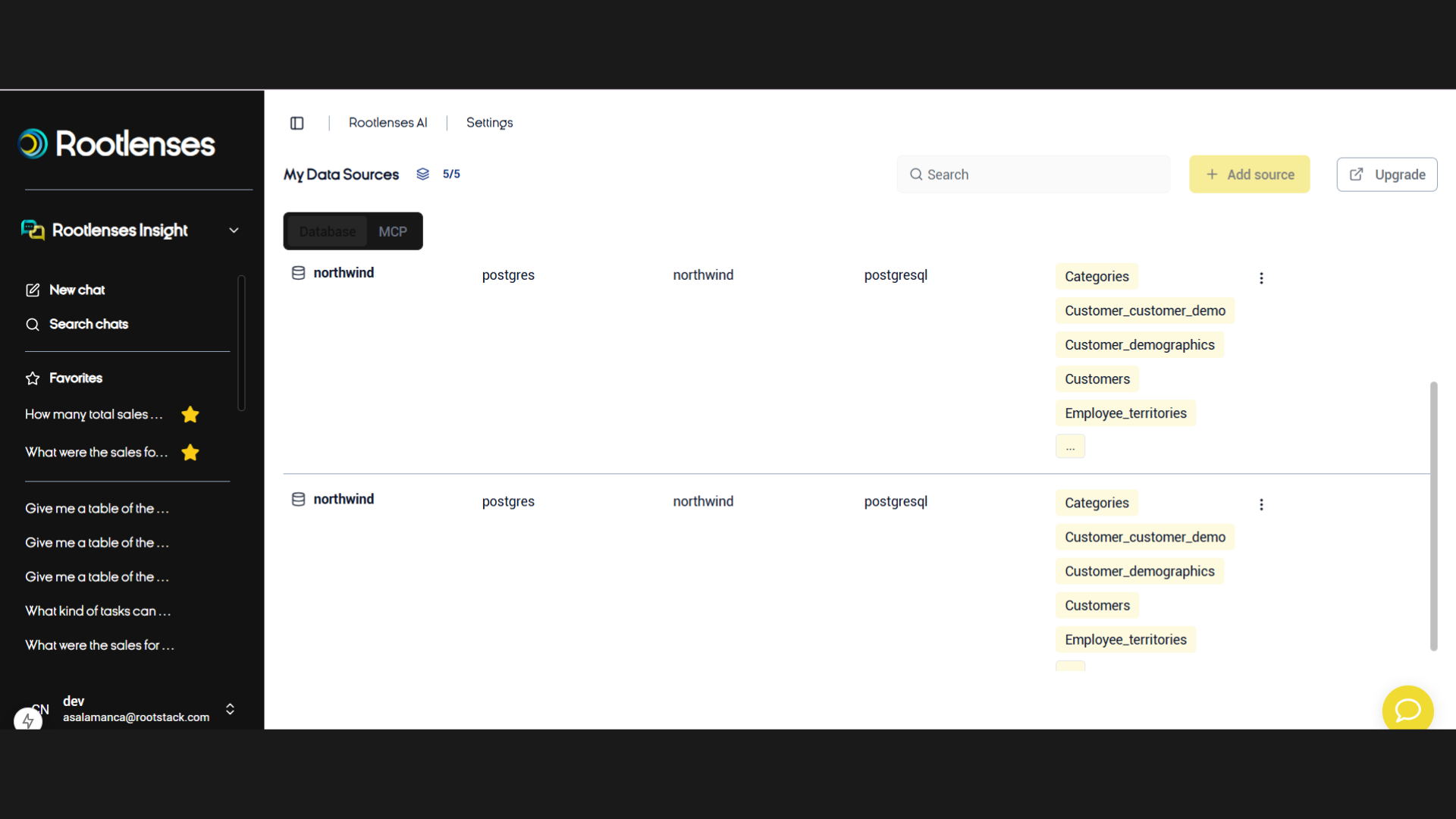
- Go to Manage Databases.
- Click Add Database.
- Select the corresponding engine.
- Enter your credentials.
- Assign an internal name to the connection.
- Click Test Connection.
- Once validated, select Auto-generate Information so the AI can read the structure.
- Save the configuration.
Table mapping and validation
Once connected, Rootlenses Insight:
- Automatically analyzes all tables and fields.
- Identifies relationships, data types, and internal structures.
- Displays a preview of the first records.
At this stage, you can:
- Verify that data loaded correctly.
- Confirm that table and column names are properly organized.
- Make adjustments before starting your queries.
A well-organized database improves the accuracy of AI-generated answers.
4.2. Common errors and quick fixes
1. Authentication Error
- Verify username and password.
- Ensure security policies are not blocking external access.
2. Connection Error
- Check your server address (host) and port.
- Confirm whether you need to enable a firewall exception or IP whitelist.
3. No Access to Tables
- Grant READ/SELECT permissions to the user used for the connection.
- Check for restrictions by schema or namespace.
4. Unrecognized Data Format
- Ensure tables contain structured fields (text, number, date, etc.).
- Avoid columns with undefined types or corrupted data.
4.3. Your first conversation
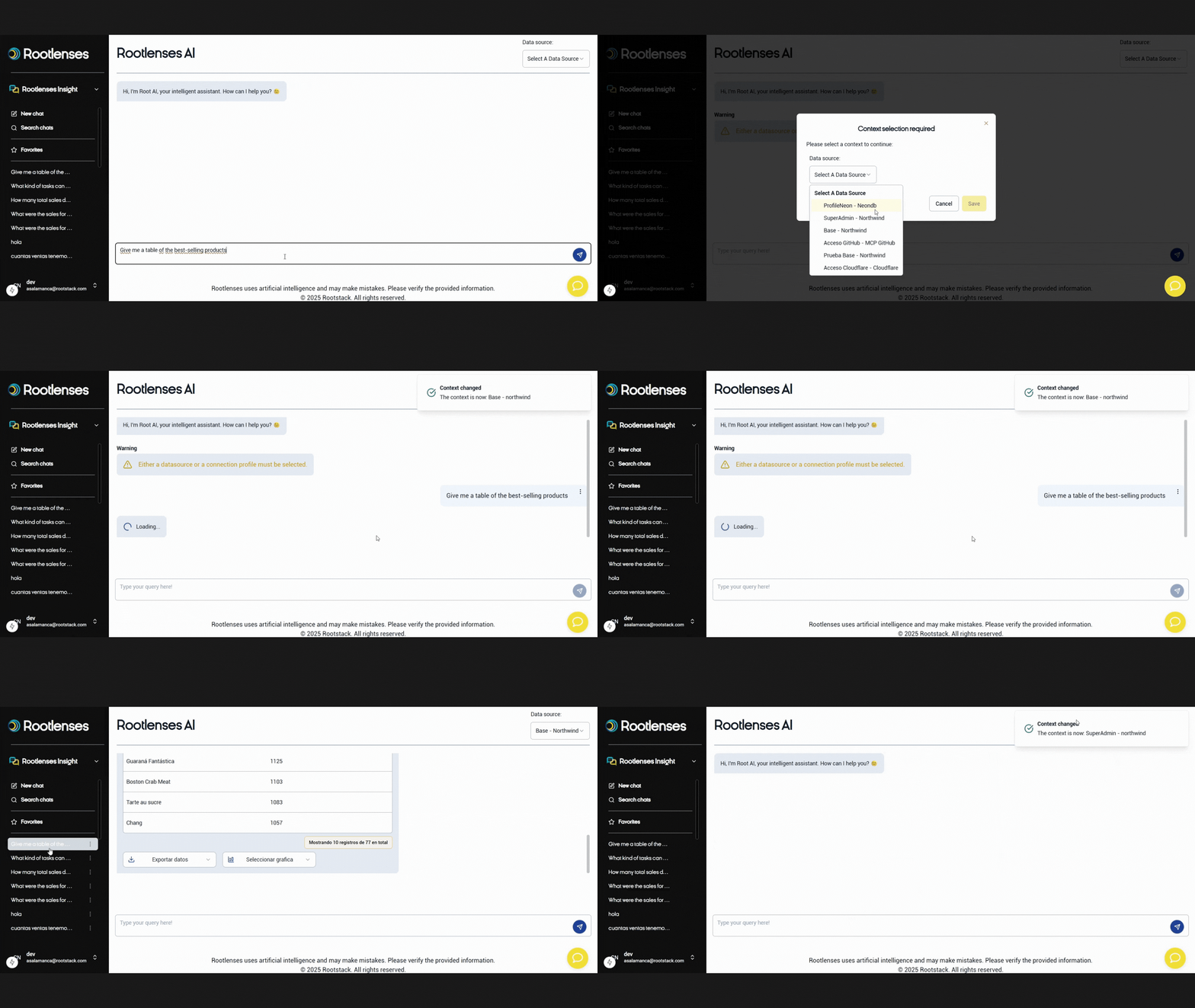
Once your database is connected, you can start your first conversation with Rootlenses Insight. This is the most direct way to explore your tables, ask questions, review metrics, and get intelligent answers based on your data.
How to start a new chat
- Go to the main Rootlenses Insight dashboard.
- Click New Chat.
- Select the database you want to use for this conversation.
- Start typing your questions or commands.
Each chat works as an independent workspace—ideal for analyzing specific topics, projects, or team meetings.
4.4. Examples of effective prompts
Your prompts can be as simple or detailed as you need:
- “Show me total sales per month in the orders table.”
- “Which customers have the most purchases according to the customers table?”
- “Filter transactions between January and March 2024.”
- “Summarize the main metrics from the inventory table.”
- “Explain the relationship between users and payments.”
You can reference tables and fields directly to improve accuracy.
4.5. Best practices for getting accurate answers
To improve response quality, we recommend:
- Give Context
Explain which table or process you're analyzing.
Example: “In the orders table…”
- Use Clear Filters
Examples: “Only in 2023,” “active customers,” “amount greater than 500 USD.”
- Specify Date Ranges
Example: “Between January and June 2024.”
- Mention Relevant Fields
Example: “Compare price, quantity, and total_amount.”
- Request Output Format
Example: “Show this as a list,” “as a table,” “as a summary.”
Marking a conversation as favorite
If a conversation contains key information (for a report, a meeting, or ongoing tracking), you can mark it as Favorite.
This allows you to:
- Retrieve it quickly
- Use it as a reference
- Return to previous analysis without losing time
- Consolidate important insights for your team
Currently, Rootlenses Insight does not allow sharing chats with other users. However, you can:
- Mark a conversation as favorite
- Save prompts as templates (ideal for repeat queries)
- Manage templates as your own reusable prompt bank
- Search old conversations through the smart history
These features help maintain an organized and reusable workflow.
4.6. Explore the menu
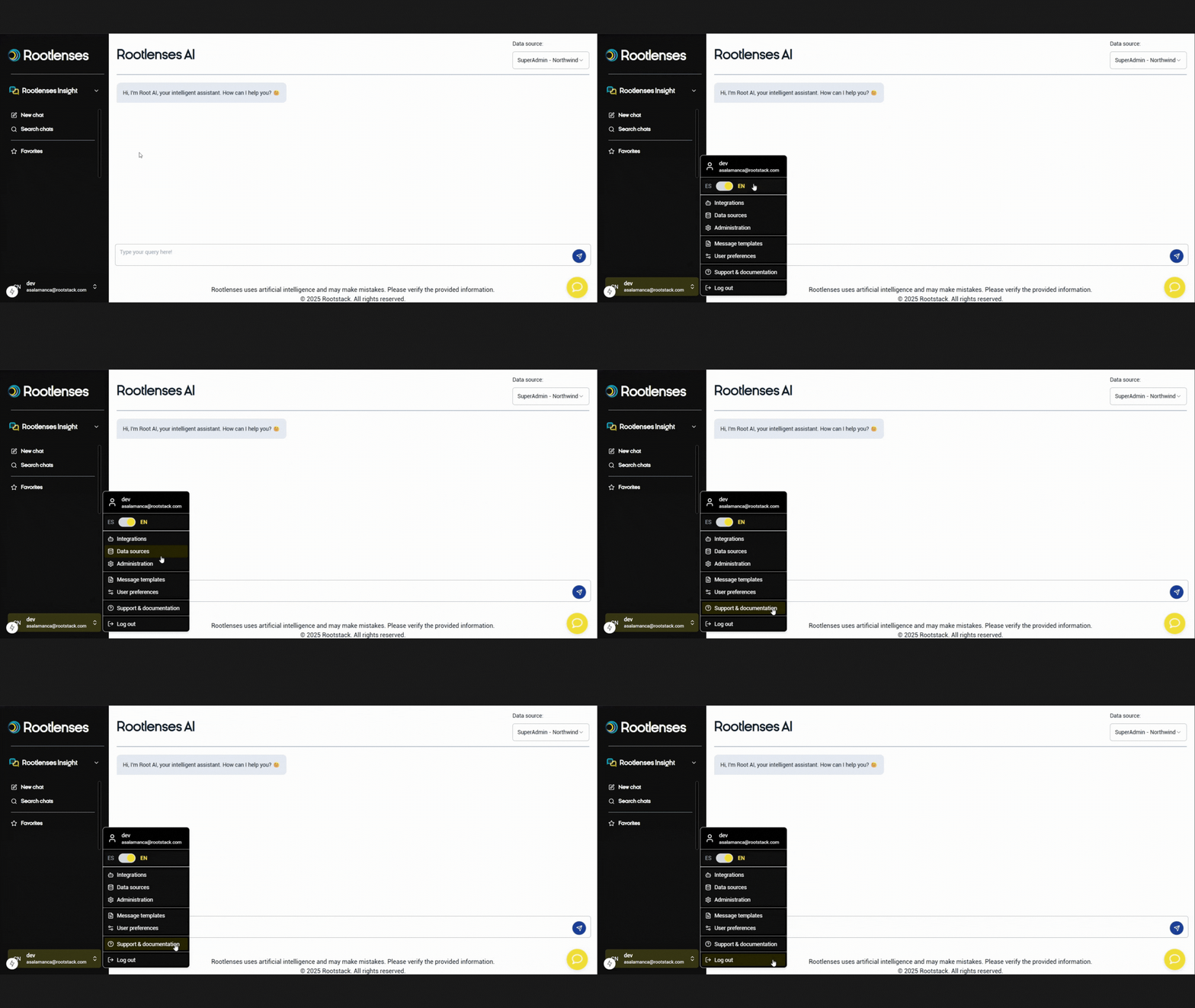
The main menu of Rootlenses Insight helps you navigate quickly between chats, searches, favorites, and analysis tools. Each section is designed to keep your work organized and make information easy to access.
New Chat
Start a new conversation with your database. Write questions, run analysis, or begin fresh explorations.
Search Chat
Find past conversations using keywords, dates, or topics—ideal when you need to revisit an analysis or retrieve a metric you previously checked.
Favorites
Shows all conversations you’ve marked as favorites—perfect for keeping:
- Important analyses
- Recurrent queries
- Information used in reports or presentations
History
An automatic record of all your interactions. It includes the full list of your created chats.
Use it to:
- Review what you asked in previous days
- Retrieve ideas
- Track the evolution of an analysis
From history, you can reopen chats, review answers, and continue the conversation where you left off.
4.7. Creating charts
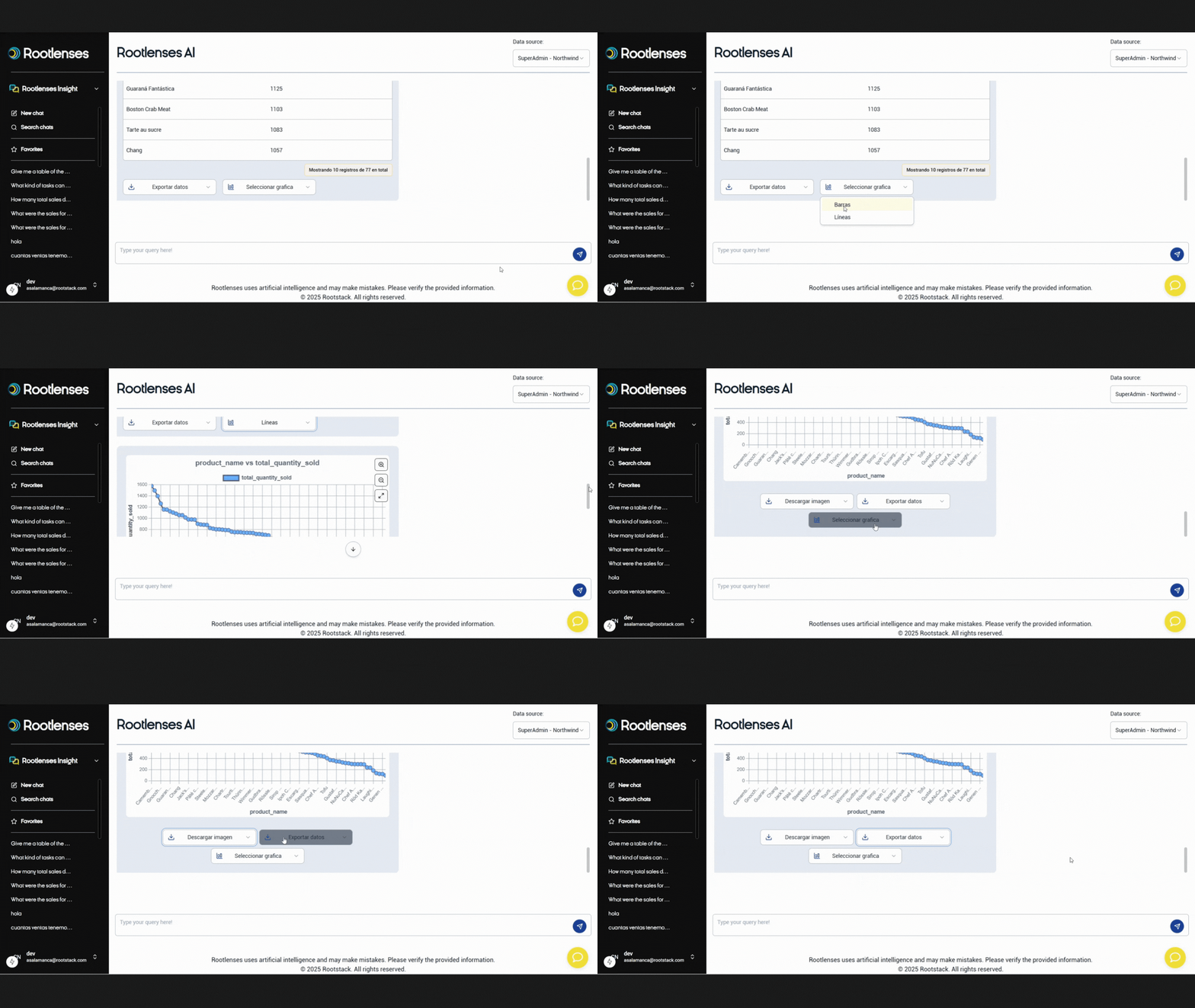
Rootlenses Insight doesn’t just answer questions — it also generates charts automatically from your data, helping you visualize patterns, comparisons, and trends within seconds.
How to create a chart
- Open a New Chat and ensure you're connected to the correct database.
- Write your query specifying the type of chart. Examples: “Create a bar chart with sales per month or Make a pie chart showing the percentage of customers by category.”
- Rootlenses Insight will process the data and display the generated chart.
Supported chart types include:
- Bar charts
- Line charts
- Pie charts
Export and share
Once the chart is created, you can:
- Download it in high quality
- Use it in presentations (PowerPoint, Slides, reports, pitch decks)
- Include it in internal reports
- Add the conversation to Favorites for quick access
Key benefit:
With Rootlenses Insight, you can turn a query into a clear visualization in seconds—without relying on Excel, complex BI tools, or external software. This accelerates decision-making, improves team communication, and enhances presentations with accurate, up-to-date data.
4.8. The importance of an organized database
A well-organized database is essential for obtaining precise, fast, and useful answers in Rootlenses Insight. Although the platform analyzes structures and generates information intelligently, the quality of the output depends directly on the quality of your data.
Currently, Rootlenses Insight does not perform automatic data-cleaning processes, so we recommend following certain best practices before connecting your database. This helps you:
- Improve answer accuracy
- Avoid interpretation errors
- Speed up queries
- Get clearer visualizations
- Reduce debugging time during analysis
4.9. Checklist to optimize your database before connecting
Use this checklist as a quick guide to ensure your data is clean, clear, and ready for analysis.
1. Table Structure
- Use clear and consistent names (e.g., customers, orders, transactions).
- Avoid vague names like “test,” “data1,” “table_copy.”
- Group tables by purpose if your engine supports it (schemas, namespaces).
- Ensure every table has a primary key or unique identifier.
2. Fields and Data Types
- Assign correct data types (text, number, date, boolean).
- Ensure dates follow recognizable formats (YYYY-MM-DD).
- Avoid multi-purpose fields mixing different data types.
- Remove unused or duplicate fields.
3. Content Quality
- Check for null values in fields that should contain data.
- Avoid using “N/A”, “NONE”, “--”, “NO DATA” to represent empty fields.
- Standardize inconsistent values (e.g., “NY”, “New York”, “new york”).
- Clean extra spaces, irregular formats, or special characters.
4. Duplicates
- Identify duplicate records in key tables (customers, products, payments).
- Establish a clear rule for which record to keep.
- Remove duplicates before connecting or analyzing the database.
5. Relationships
- Define explicit relationships (FK) when possible.
- Ensure consistency between related tables (e.g., customer exists before their order).
- Check for broken references: IDs pointing to non-existing records.
6. Security and Permissions
- Use a user with READ/SELECT permissions for Rootlenses Insight.
- Avoid granting delete or write permissions.
- Ensure all relevant tables are accessible.
7. Value Standardization
- Standardize names, categories, and labels (e.g., “Pending” vs “pending”).
- Use consistent capitalization.
- Define valid value lists for categorical fields.
8. Performance
- Index fields frequently used in queries.
- Clean up overly large tables; archive old records if unnecessary.
- Remove unnecessary fields that inflate dataset size.
9. Minimal Documentation
- Maintain a basic description of each table.
- Specify what each column means and its type.
- Document business rules affecting data (e.g., “inactive customers have status = 0”).